How-to 2 of 6 · The person recording · Answering
Answer with your voice only
You do not have to be on camera. Your voice is enough.
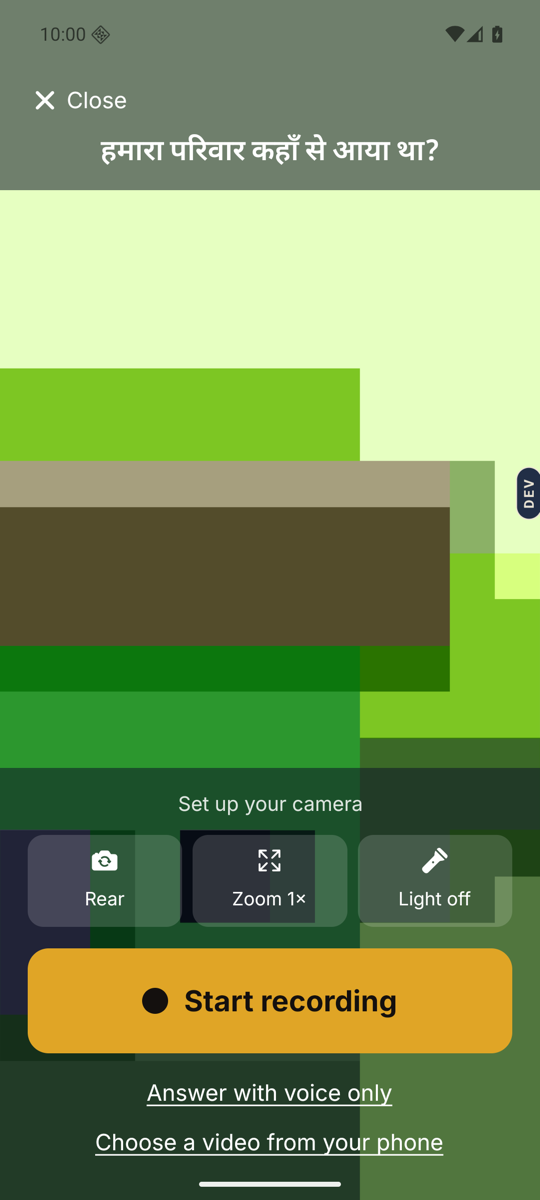
- Tap Answer on a question.The camera screen opens. Do not tap Start recording.
- Tap Answer with voice only.A small line of text under the Start recording button.
- Wait for 3, 2, 1.Then the screen says “Recording audio” and “Listening…”. Speak as you normally would. A clock counts the time.
- Tap the square button to stop.Under it is the word Stop. Need a moment? Tap Pause first, then Continue recording.
- Tap Send.This is the Review screen. Play it back if you like. Send shares it with your family. Try again records it once more.
Good to know. If the phone says “Camera access needed”, you can still answer. That screen also has Answer with voice only.
Good to know. In My memories, a voice answer shows a microphone instead of a picture. Your family hears it just the same.
Stuck anywhere? Write to [email protected] — a person answers.